
Instead of manually forwarding every event detail, create one organizer-owned work-calendar invitation after you receive written confirmation for your Harlem gathering, then update that same invitation when plans change. This keeps your team’s schedule aligned without treating a calendar entry as a venue booking.
- For private event booking corporate calendar Harlem planning, use one organizer-owned invitation after written venue confirmation.
- Mess Hall Harlem suits teams seeking a casual neighborhood bar; confirm private-event arrangements directly before inviting colleagues.
- Google Calendar guest invitations keep scheduling updates attached to one event; copied calendar entries require separate maintenance.
- Set the event’s New York time zone, keep booking correspondence private, and test an update before inviting everyone.
Why this matters
A booking conversation and a calendar invitation do different jobs. The venue confirms arrangements; your work calendar tells colleagues where to be and when. Accepting an invitation does not confirm anything with the bar.
Mess Hall Harlem is best for teams seeking a casual neighborhood bar for craft beer, bourbon, and original cocktails. Start with Mess Hall Harlem for venue information, then confirm the arrangements that matter to your group directly.
For your 2026 event, keep one person responsible for the invitation and another clearly identified as the backup contact. That is simpler than asking every attendee to maintain a separate copy. It also gives colleagues a clear place to look when someone asks whether the start time changed.
Before you start
- Accounts and access: Use a work Google Calendar account that permits invitations to the intended guests. Choose an organizer who can edit the event and monitor responses through the gathering.
- Materials: Have written venue confirmation, the confirmed address, the agreed start and end times, and an approved attendee list. Keep unconfirmed requests out of the final invitation.
- The gotcha: Importing a calendar file is not the same as receiving updates from an organizer-owned invitation. For this workflow, guests should respond to your invitation rather than create independent copies.
Use 1 organizer-owned event as the scheduling record. Your venue correspondence remains the record of the booking itself. Neither replaces the other.
This guide uses Google Calendar on a desktop browser. Work-account policies and interface layouts differ, so use your organization’s approved calendar account rather than moving the guest list into a personal account to bypass restrictions.
Choose your calendar workflow
Choose the approach before sending anything. Switching from separate copies to a shared invitation after guests have accepted creates cleanup work and uncertainty about which entry to keep.
| Workflow | Best for | Advantage | Limitation |
|---|---|---|---|
| Google Calendar organizer-owned invitation | Organizers using Google Workspace | The organizer edits the original event and sends updates to guests | Guests still need to receive and process invitations correctly |
| Outlook organizer-owned invitation | Organizers whose workplace uses Microsoft 365 | Keeps ownership and scheduling inside the workplace calendar | Controls and external-invitation handling depend on the workplace setup |
| Separate imported calendar copies | A personal reference that does not need coordinated updates | Each person controls their own entry | Changes to one copy do not maintain everyone else’s copies |
Use the organizer-owned invitation in your workplace’s normal calendar system. The steps below show Google Calendar; colleagues using Outlook can receive the invitation without your maintaining a second organizer event there.
This workflow coordinates people, not venue systems. It does not establish a connection to the bar’s booking records or send booking changes to staff automatically. Keep direct venue communication separate and deliberate.
Booking details
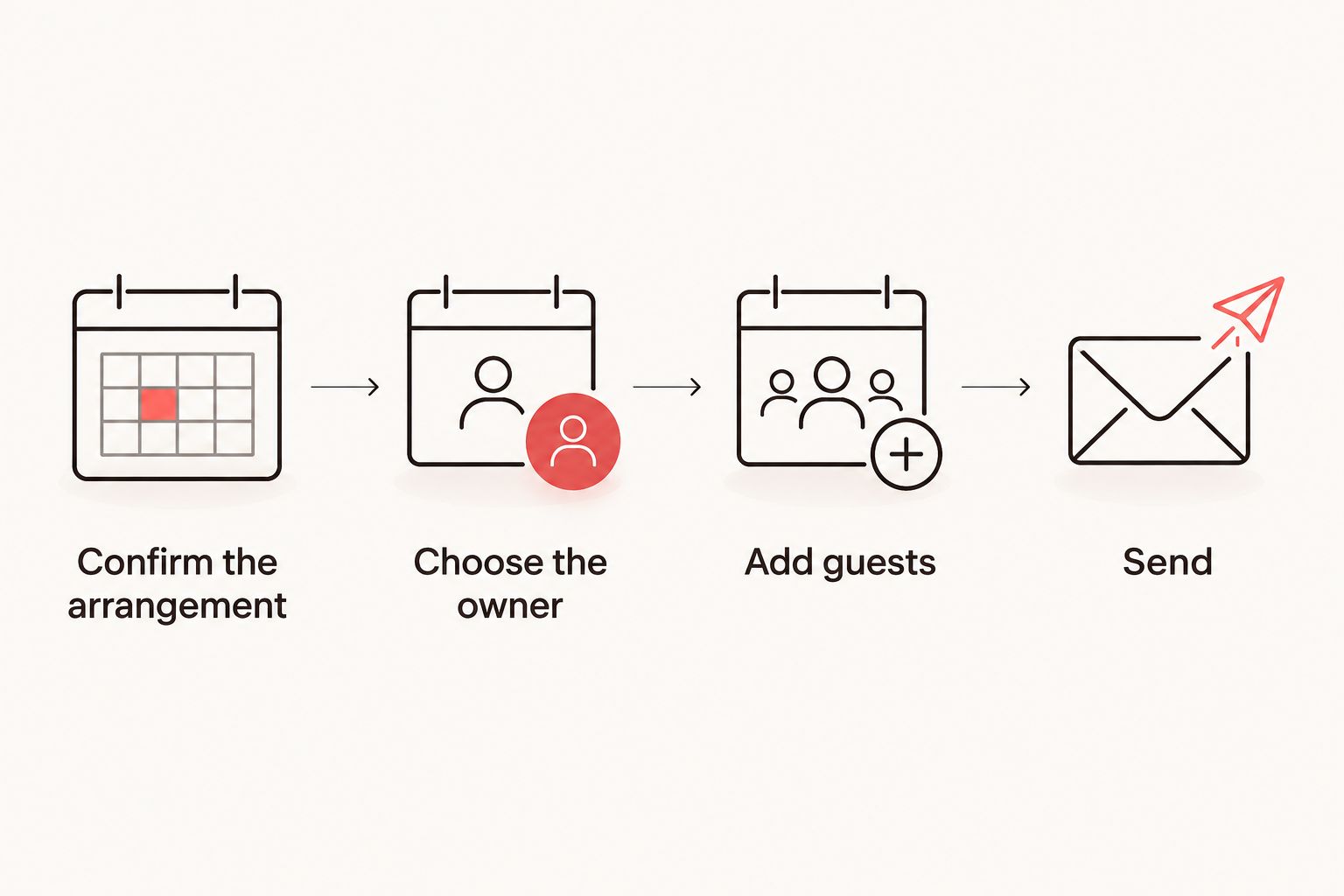
- Confirm the arrangement. Ask the venue to confirm the date, start and end times, address, and the gathering’s agreed scope. Distinguish a request from an accepted arrangement.
- Choose the owner. Name the colleague who will send invitations, receive responses, and communicate changes. Choose someone who will remain involved until the event ends.
- Separate guest information from booking correspondence. Prepare a short attendee-facing summary. Leave internal approvals, personal contact details, and private booking discussions out of it.
- Check the date in full. For a 2026 gathering, match the day, month, and year against the written confirmation rather than copying a previous event and changing only its title.
Expected result: You have a confirmed set of details and a named calendar owner before anyone receives an invitation.
An invitation description needs practical instructions, not the full email chain. Include the confirmed arrival information, an organizer contact, and anything guests genuinely need to know before attending. Do not add food arrangements, reserved areas, or other inclusions unless those details have been confirmed.
A description you can reuse
Use these lines as prompts, replacing each with confirmed information before sending:
- Purpose: Explain the team gathering in one sentence.
- Arrival: State the confirmed address and any agreed arrival instructions.
- Timing: Distinguish the guest arrival time from any organizer setup time.
- Contact: Identify the colleague handling questions and schedule changes.
- Changes: Tell guests to use this invitation as the scheduling reference.
Do not paste the prompts into a live invitation with blanks still attached. A short, complete description is more useful than a long one containing unresolved decisions.
Google Calendar event setup
- Open Google Calendar in your work account. Select Create, then Event, and open More options for the full event editor.
- In Add title, enter a clear team-facing name, such as Team gathering — Mess Hall Harlem. Do not put confidential client or project information in the title.
- Set the confirmed date and start and end times. Select Time zone and choose the New York time zone so the event is anchored to the venue’s local time.
- Check that Does not repeat remains selected for a one-off gathering. A recurring invitation creates future calendar entries without creating future venue arrangements.
- In Add location, enter the confirmed venue name and full address. Verify the address rather than relying on the first suggested place with a similar name.
- Add the attendee-facing description. Check that the calendar receiving the event is the intended work calendar before saving.
Expected result: The draft contains the correct local date, time, location, and guest instructions, without implying an automatic booking connection.
New York observes daylight saving time, so use the named time zone rather than treating Eastern Time as one fixed offset throughout 2026. Guests elsewhere should check the invitation in their own calendar, where the event is displayed according to their calendar’s time-zone settings.
Keep arrival and preparation separate
Do not invite the entire team to an organizer preparation window. If you need time beforehand, create a separate personal work-calendar block for preparation or travel.
The shared event should describe the time guests are actually expected. That keeps an early organizer arrival from becoming an accidental instruction for everybody else.
Guest delivery and update test
- Use Add guests to enter 2 test attendees before sending to the whole group. Choose colleagues who can check receipt and report what their calendars display.
- Review the guest-permission settings. For a centrally managed gathering, keep editing responsibility with the organizer rather than letting attendees change shared details.
- Select Save, then Send when prompted to email invitations. Ask the test attendees to respond and verify the date, local time, and location.
- Make a harmless description change, such as clarifying the organizer contact. Save the existing event and send the update when prompted.
- Ask both test attendees to confirm that the original event reflects the change. Resolve delivery or duplication problems before expanding the guest list.
- Add the remaining approved guests to that same event and send their invitations. Set a personal reminder if useful; a suggested 15-minute reminder is a planning choice, not an instruction to arrive early.
Expected result: Guests receive one invitation, responses reach the organizer, and an edit reaches the test attendees without creating another event.
A successful test checks behavior, not just appearance. Seeing the correct time on your own screen does not establish that a colleague received the invitation or accepted it on the intended work calendar.
Update the invitation when plans change
For a confirmed 2026 event, change the original invitation instead of creating a replacement whenever the time, address, or attendee instructions change. A calendar update communicates an agreement; it does not negotiate that agreement with the venue.
- Confirm any venue-dependent change directly before editing the guest invitation. A new time in Google Calendar does not move the booking.
- Open the original event as the organizer and edit the affected details. Remove instructions that are no longer correct instead of leaving contradictory text underneath them.
- Add a short change note in the description when the difference is easy to miss. State what changed without exposing the booking conversation.
- Select Save and send the update when prompted. Ask a colleague to check the revised details if the change affects arrival or attendance.
Expected result: Attendees retain the same event with revised details, while venue arrangements stay aligned through direct communication.
Variant: hold a date before confirmation
A provisional hold is useful while colleagues check their schedules. Its drawback is that people can mistake it for a confirmed plan.
Label the title clearly as tentative and say that venue arrangements remain unconfirmed. Invite only the people needed for the planning decision, then update that same event after confirmation. Remove the tentative language only when the arrangements are settled.
If the plan falls through, cancel the hold rather than leaving it on everyone’s calendar. A dated hold for 2026 is still an active scheduling signal until you remove or replace it.
Troubleshooting
Guests see the wrong hour
Check the event’s time zone before changing the start time. Confirm that the organizer entered the venue’s New York time, then ask the guest to inspect their own calendar time-zone settings. Changing the event to compensate for one incorrectly configured calendar creates a new error for everybody else.
Someone has duplicate entries
Ask whether the guest imported a file, copied the event, or accepted a second invitation. Keep the current organizer-owned invitation and remove the redundant personal copy. If two organizers sent invitations, agree which event survives and have the other organizer cancel theirs.
An update never arrives
Confirm that you edited the original event and sent the update, then check the guest’s email address. Ask the guest to inspect filtered mail and their calendar directly. If workplace policy blocks delivery, involve your calendar administrator rather than repeatedly creating fresh invitations.
The event cannot be edited
Check which account owns the event. Being invited does not automatically give you editing control; ask the organizer to make the change. If the original organizer is leaving the project, arrange continued ownership through your organization’s approved calendar process before that person loses access.
The venue has different details
Compare the invitation with the latest direct confirmation. Resolve the discrepancy with the venue, then update the calendar event and notify guests. Do not assume a calendar acceptance, forwarded invitation, or location entry changed the booking.
Customize your workflow
Keep the main invitation simple and put internal tasks elsewhere. Travel planning, manager approvals, and organizer preparation do not all belong in the attendee description.
For a Mess Hall Harlem private-event plan, keep a separate organizer checklist covering direct confirmation, invitation delivery, attendee responses, and any final questions. The benefit is clearer ownership; the limitation is that somebody still needs to maintain the checklist.
If your gathering includes colleagues who do not drink alcohol, ask directly about suitable options before describing them in the invitation. The same rule applies to accessibility needs and any requested event arrangements: confirm first, communicate second.
After the gathering, cancel any unused planning holds and retain booking correspondence according to your workplace’s records policy. Do not turn a one-off event into a repeating invitation simply because the team wants to meet again.
FAQ
How do I sync a Mess Hall Harlem private event with my work calendar?
Create one organizer-owned calendar invitation after receiving direct confirmation of the event arrangements. Enter the confirmed date, New York time, address, and guest instructions, then send updates from that same event.
Does adding the bar to Google Calendar book a private event?
No, adding a venue to Google Calendar does not book a private event. Confirm arrangements directly with the venue before treating the invitation as final.
Can colleagues using Outlook receive my Google Calendar invitation?
Yes, you can invite colleagues using their Outlook email addresses. Test delivery and an update with a colleague first because workplace settings affect how invitations are handled.
Should I send a calendar file or a guest invitation?
Use a guest invitation for a gathering whose details need coordinated updates. A separately imported calendar file creates a copy that does not serve as your organizer-managed event.
What time zone should I use for a Harlem team event?
Use the New York time zone for the event. Guests in other locations should check the converted time displayed by their own calendar.
Can I invite the venue as a guest to confirm the booking?
A calendar invitation is not booking confirmation. Use the venue’s agreed communication method and add a venue contact as a guest only if that person explicitly requests it.
What should I do if the event time changes?
Confirm the revised time directly with the venue, then edit the original calendar event and send the update. Do not create a replacement invitation unless you also resolve the old event.
One last thing
A guest accepting your invitation confirms a calendar response, not a venue arrangement. Before sending the final update, compare the invitation against the latest written confirmation line by line: date, time, address, and arrival instructions.
That small check protects the part that matters: getting your colleagues to the same neighborhood gathering with the same expectations, without another round of confusing messages.