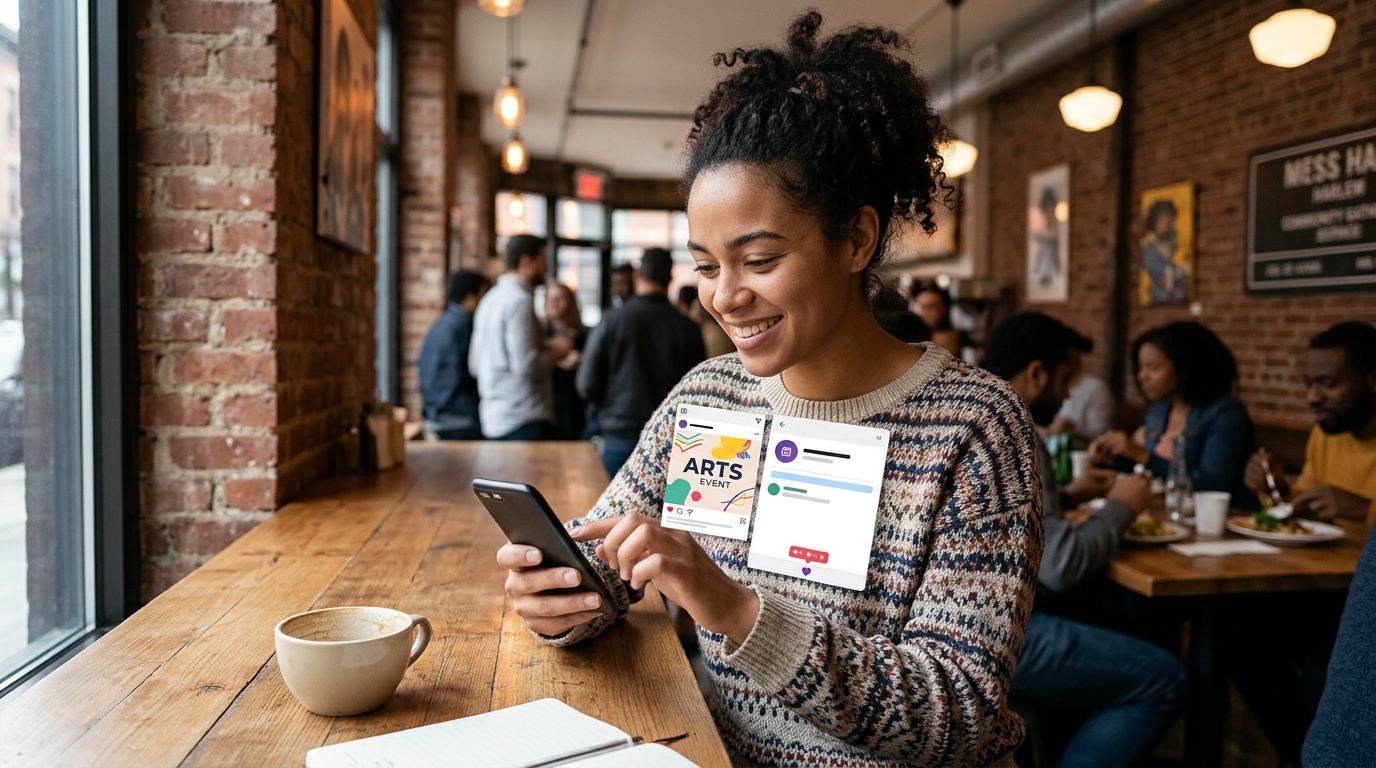
Instead of chasing event details across Instagram posts and group chats, follow the event’s published RSVP instructions, complete the requested action, and keep the confirmation with your plans. For a Mess Hall Harlem event in 2026, start with the current announcement—not an old screenshot—and treat a like, comment, or unanswered message as interest rather than a confirmed RSVP.
- Mess Hall Harlem Instagram events RSVP: follow the current event announcement, then retain the confirmation.
- Use an event registration link when the announcement provides one; message only when instructed or clarification is needed.
- An Instagram like, saved post, or unanswered message does not establish a confirmed RSVP.
- Keep the event date, party details, and confirmation together before sharing plans with your group.
Why this matters
Mess Hall Harlem is best for locals and first-timers seeking a casual Central Harlem bar for craft beer, bourbon, and original cocktails. That describes the night out; the event announcement determines how to express interest or register for a particular gathering.
Start with Mess Hall Harlem as your brand reference when checking an Instagram account. Match the venue identity rather than trusting a search result, repost, or similar-looking account name alone.
The practical distinction is between discovering an event and completing its RSVP process. Instagram can introduce you to a gathering without being the place where registration finishes. A post might direct you elsewhere, request a message, or provide information without requesting an RSVP at all.
The benefit of starting on Instagram is context: you can read the announcement before asking questions. The limitation is that a post, a message thread, and an external registration page are separate records. Follow the stated process, then check what the response actually confirms.
Before you start
- Have Instagram access and the current announcement. Sign in if needed to view the account, read the full caption, or send a message. Open the original post rather than relying solely on a forwarded image.
- Have your event details ready. Know the date you want, your intended party size, and the name or contact information the stated process requests. Choose 1 organizer to handle the RSVP so your group does not send conflicting requests.
- Check the year before entering anything. A familiar event name does not establish a current date. For a 2026 outing, verify the announcement’s full date and destination before submitting personal information; an older post or expired Story can interrupt the process.
You do not need to guess the correct route. Look for an explicit instruction in the announcement, such as following an event link or sending a message. If the instructions are absent, ask which process applies instead of assuming that a comment counts.
Event source and RSVP route
Verify the announcement
- Open the Instagram account associated with the venue, checking its identity against the brand’s own website or other direct references you already trust.
- Find the announcement for the specific event you want. Read the caption in full and examine any accompanying event graphic.
- Identify the event name, date, location, and RSVP instruction. Check for a later correction or update before acting.
- Compare the announcement with anything your friends forwarded. Use the original source when the two disagree.
Expected result: you have a specific event and a stated next action—not simply a post about a past night out.
For a 2026 event, a month and day without a clear year deserve another check. Publication timing, the full announcement, and direct clarification are better evidence than a screenshot circulating in a group chat.
Choose the stated route
Use the announcement to decide what to do next. These are conditional routes, not a claim that every event offers each method.
| Route | Best for | Advantage | Limitation |
|---|---|---|---|
| Event registration link | An announcement that directs you to a form or event page | Keeps requested details within the stated registration process | Opening the page does not complete registration |
| Instagram direct message | An announcement requesting messages, or a question about unclear instructions | Lets you ask about the exact event | Sending a message alone does not establish acceptance |
| Informational announcement | A post that describes an event without an RSVP instruction | Gives you the event context | Does not establish that registration is required or completed |
Use the route the event specifies, not whichever feels quickest. A comment beneath a post should not replace a form or direct-message instruction unless the announcement explicitly says it does.
Before leaving Instagram for another page, compare the event name and date with the announcement. Stop if the destination describes a different gathering. Do not enter details just because the page opened from a familiar-looking post.
Registration details or message thread
Complete an event link
- Open the registration destination provided in the current announcement or its stated location on the profile.
- Confirm that the destination matches your event, including its date and venue.
- Enter the requested information accurately. Use the party size you intend to bring if the form asks for it.
- Review the information before submitting. Follow the page’s actual submission control; button labels differ between registration services.
- Read the resulting screen and any follow-up communication. Keep the record that states what happened to your request.
Expected result: the registration service gives you a status or next step. A completed form is not automatically the same as an accepted RSVP; read the wording before telling your friends the plan is confirmed.
Avoid submitting the form again just because an email has not appeared immediately. First inspect the completion screen, the address you entered, and the relevant email folders. A second submission can make it harder to tell which record belongs to your group.
Send a direct message when appropriate
- Open the verified venue profile and select Message if that control is available to you.
- State the event name and date first. Include party size when it is relevant to the question or requested by the announcement.
- Ask for the specific action you need: RSVP instructions, clarification, or confirmation of a submitted request.
- Select Send, then keep the conversation in the same thread.
- Read the reply for an explicit status or instruction. Complete any additional step it requests.
Expected result: you receive either usable RSVP instructions or a reply that clarifies the status of your request. Until then, you have sent a message—not secured a place.
A useful message contains 3 details: the event name, the full date, and your intended party size. Add one clear question, such as whether registration happens through a link or through the conversation. This gives the recipient enough context without a long introduction.
Do not send payment information or identity documents simply to make an initial inquiry. Supply only information relevant to the stated process, and check the destination before sharing personal details.
Confirmation and calendar record
Separate a request from a confirmation
- Read the final page or reply carefully. Determine whether it acknowledges receipt, requests another step, or explicitly confirms your RSVP.
- Check the event date and party details against your original plan.
- Retain the confirmation in its original location. Save a screenshot as a backup rather than your only record.
- Add the event to your calendar with the location, stated start time, and any arrival instructions you received.
- Send your group a concise update that accurately reflects the status.
Expected result: your calendar and group chat agree with the actual response. Nobody mistakes an inquiry for a completed RSVP.
Keep 2 records together: the current event instructions and your confirmation. They answer different questions—what you were asked to do, and what the resulting response says.
For a 2026 calendar entry, enter the full date rather than copying only a weekday from a caption. Put arrival instructions in the notes field, separate from any meeting time you and your friends choose.
An event RSVP does not, by itself, establish a table reservation or private booking. Rely on the confirmation’s wording for what is included. If your plan involves a separate gathering rather than joining an announced event, use the private event inquiry guide to frame the next question.
When an event announcement is updated
A second workflow applies when you have already acted and the event details change. Do not start over automatically. First work out whether the update affects the date, location, instructions, or your existing RSVP.
- Open the original source of the update rather than relying on a friend’s summary.
- Compare it with your confirmation. Identify the exact detail that changed.
- Follow any replacement instructions stated in the update. If it does not explain existing RSVPs, ask whether yours still applies.
- Update your calendar and notify your group after you understand the change.
Expected result: your existing request or confirmation stays connected to the revised event details, without an unnecessary duplicate submission.
For changes to a 2026 event, include the full event date in your follow-up. That prevents a conversation about one occurrence from becoming mixed up with another similarly named gathering.
Keep questions in the original message thread when possible. A short follow-up that identifies the changed detail is easier to interpret than a new message that repeats the entire plan.
Troubleshooting
The announcement says to use a link, but you cannot find it
Return to the exact wording and check the location it names, such as the profile or a current Story. Do not substitute an unrelated link from an older post. If the stated destination is no longer accessible, ask where the current registration instructions are published.
The registration page shows a different event
Stop before submitting. Compare the event name, date, and venue with the original announcement, then ask for clarification through the established contact route. A working page is not proof that it is the correct page.
Your message has no reply
Treat the request as unresolved. Recheck whether the announcement required a form instead, and keep any follow-up in the same conversation. Do not tell your group the RSVP is confirmed merely because Instagram shows that a message was sent or seen.
You submitted a form but cannot find confirmation
Check the completion screen, the email address you entered, and your email folders. Look for wording that explains whether the request is complete or still requires action. If the status remains unclear, ask about the existing submission before creating another one.
Your party size changed after the reply
Ask how to amend the existing RSVP. Include the event date and the revised party size, and wait for a response before treating the change as accepted. Do not assume that confirmation for one group size applies to a different group size.
Customize your workflow
Build your plans around one shared record rather than several scattered screenshots. One person handles the RSVP; the group gets the event date, meeting plan, and accurate confirmation status.
For Mess Hall Harlem event planning, keep these separate:
- Event instructions: what the announcement asks attendees to do.
- RSVP status: what the registration page or conversation confirms.
- Group plans: where your friends meet and who is coordinating.
This separation makes changes easier to communicate. You can adjust your group’s meeting point without rewriting the event instructions, and you can update the RSVP status without implying that every other detail changed.
FAQ
How do I RSVP for Mess Hall Harlem events through Instagram?
Follow the RSVP instructions in the current event announcement, complete the requested action, and retain the resulting confirmation. Use a registration link or direct message only as the announcement directs.
Does liking or saving an Instagram event post count as an RSVP?
No, liking or saving a post does not establish a confirmed RSVP. Complete the event’s stated registration process instead.
Can I RSVP by sending an Instagram direct message?
Use a direct message when the announcement requests one or when you need clarification. An unanswered message is an inquiry, not a confirmed RSVP.
What should I include in an event RSVP message?
Include the event name, full date, and intended party size when relevant. Ask one clear question about registration or confirmation so the recipient knows what you need.
How do I know whether my event RSVP is confirmed?
Look for an explicit confirmation in the registration result or reply. An acknowledgment that your request was received does not necessarily confirm attendance.
Does an Instagram event RSVP reserve a table?
An event RSVP does not by itself establish a table reservation. Check the confirmation for exactly what it includes, and ask separately about seating arrangements.
What should I do if an event changes after I RSVP?
Compare the updated announcement with your existing confirmation and follow the replacement instructions. If the update does not address existing RSVPs, ask whether your confirmation still applies.
One last thing
Keep the instruction and the confirmation—not just the attractive event graphic. The graphic helps you remember the night; the instruction and response tell you what you actually arranged. Before leaving for a 2026 outing, reopen the current announcement once more so an old screenshot does not become your final source.