Instead of sorting out payment while everyone is ready to leave, ask whether Mess Hall Harlem accepts Apple Pay before opening your tab, then use the contactless checkout steps below if staff confirms it does. This 2026 guide explains how to prepare your iPhone, settle the correct check, and confirm that your tab is closed—not just that your phone displayed a checkmark.
- For an apple pay bar tab nyc visit, confirm Apple Pay acceptance with Mess Hall Harlem before ordering.
- Apple Wallet authentication prepares a payment; the bar still needs to confirm that your tab is settled.
- Ask separately about opening a tab, closing a tab, and splitting the bill.
- Review the total and gratuity before authorizing payment, then keep your receipt.
Why this matters
Paying for a drink and opening a running tab are different transactions. A contactless reader does not, by itself, tell you whether a bar can use your phone to start a tab, whether staff needs a physical card, or how gratuity is handled.
Mess Hall Harlem is best for locals and visitors seeking a casual Central Harlem neighborhood bar. Its offering centers on craft beer, bourbon, and original cocktails; payment arrangements deserve a quick check before you settle into the evening. Use the contact page to ask ahead, or confirm directly with the bartender before ordering.
For your 2026 visit, make the question specific: ask whether you can close a running tab with Apple Pay, not simply whether the reader takes contactless payments. That distinction keeps the checkout conversation clear.
Before you start
- Prepare your payment device. Have a compatible iPhone with a supported payment card added to Apple Wallet, working device authentication, and enough battery to complete checkout. Bring a physical payment card as a backup, plus your identification.
- Confirm the bar's process. Ask whether Apple Pay works for your intended transaction, whether starting a tab requires a physical card, and whether the same payment method must close it. Do not assume that acceptance for an individual purchase establishes the rules for an open tab.
- Understand the card-number gotcha. Apple Pay uses a device-specific payment number rather than presenting your physical card number to the merchant. If staff identifies your tab by card digits, explain that you used Apple Pay and ask which digits they need before presenting another card.
Ask first, authenticate second, and confirm closure last. These are separate actions, even when the payment itself feels quick.
Your iPhone payment setup
Complete this part before asking staff to process the check. The standard Apple labels below apply to supported iPhones; follow your device's prompts if its layout differs.
- Open Wallet on your iPhone. Check that the payment card you intend to use appears there; a card saved for shopping in another app is not the same as a card added to Apple Wallet.
- If you need to add a card, tap the + button, choose Debit or Credit Card, then tap Continue. Follow the onscreen instructions and complete any verification your bank requires.
- Check which card you intend to use. If you keep personal and work cards in Wallet, identify the correct one before presenting your phone to the reader.
- Make sure you can authenticate. On an iPhone with Face ID, double-click the side button and authenticate with Face ID or your passcode; on an iPhone with Touch ID, use the Home button and Touch ID as prompted.
- If the displayed card is not the one you want, tap it to view your other cards, choose the intended card, and authenticate again when prompted.
Expected result: Your intended card is ready in Apple Wallet, and you know how to authenticate it. You have not paid the bar simply by opening Wallet or viewing a card.
Do not hand an unlocked phone to someone else to complete these steps. Keep control of your device and present it to the payment reader yourself when staff asks.
Your tab and checkout arrangement
Decide how you will handle the bill before the first round. For a 2026 night out, a short conversation at the beginning is more useful than discovering different expectations at closing time.
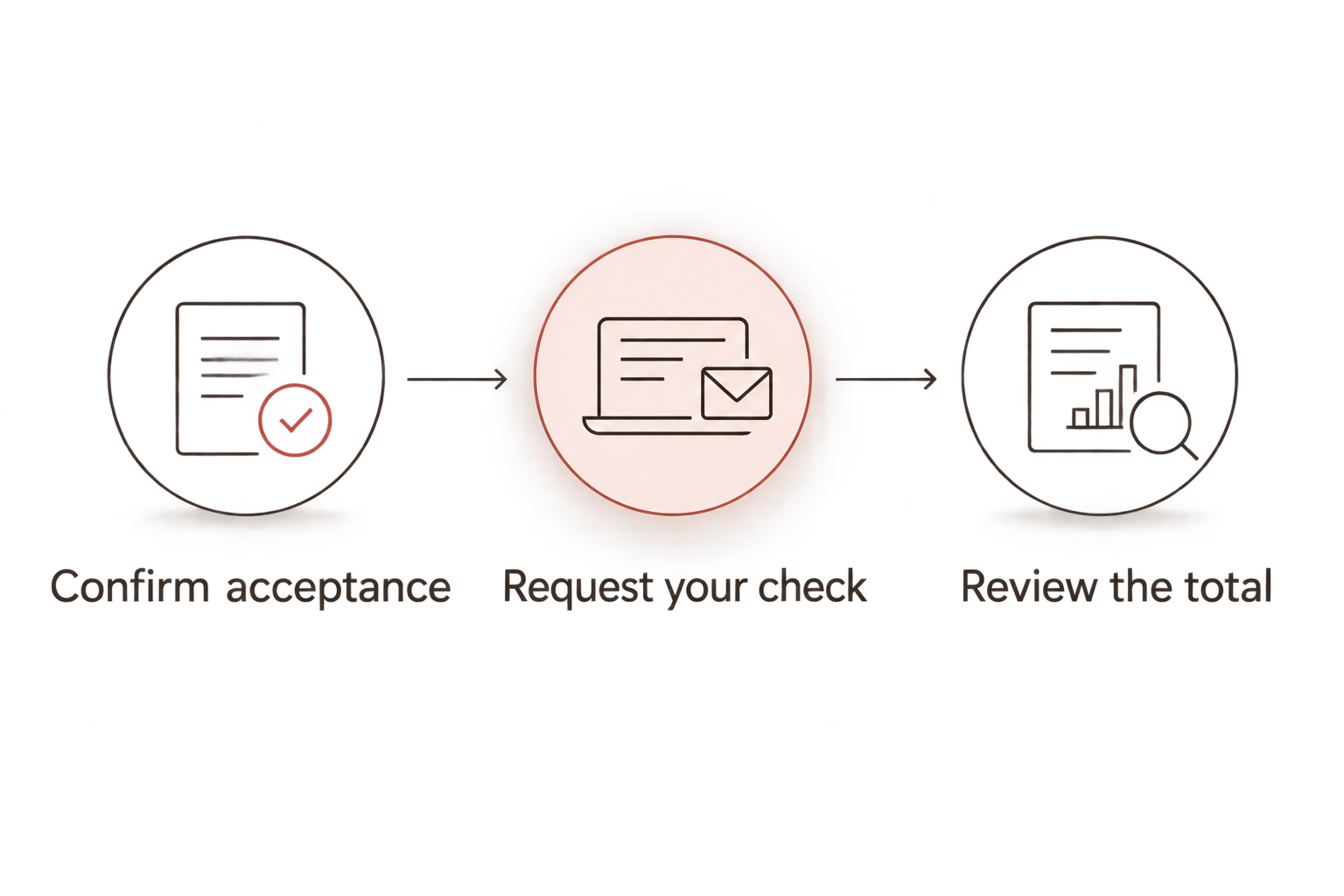
- Confirm acceptance. Ask the bartender whether you can use Apple Pay to pay your check that evening. If you want a running tab, include that detail rather than asking only about a single drink.
- Choose the tab arrangement. Ask whether you should pay after each order or open a running tab. If staff requires a physical card to start the tab, ask whether closing with Apple Pay is permitted before proceeding.
- Agree on the payer. For a group, choose 1 payer for a shared check unless staff confirms another arrangement. Tell your friends how you plan to divide the bill before ordering together.
- Request your check. When you are ready to leave, ask to close the tab and say that you intend to use Apple Pay. Give staff the information they request to locate the correct check.
- Review the total. Check that the drinks belong to your party and review any tax, gratuity, or other listed charges. Ask about an unfamiliar line before authorizing payment.
Expected result: Staff has located the right check, confirmed the payment method, and explained anything you need to complete before tapping.
The sequence is simple: establish the payment method, identify the bill, and only then authorize the transaction. Skipping the middle step risks paying the wrong check even when the phone works perfectly.
Your contactless payment and receipt
Once staff has prepared the transaction, follow the reader's instructions. Do not assume the screen order for gratuity, signature, and payment is identical across bars or payment systems.
- Review any gratuity prompt before confirming it. Check whether a gratuity or service charge already appears, and ask staff what an unfamiliar charge represents.
- Activate Apple Pay on your iPhone and authenticate with the intended card selected. Keep the reader in view so you can follow its instructions.
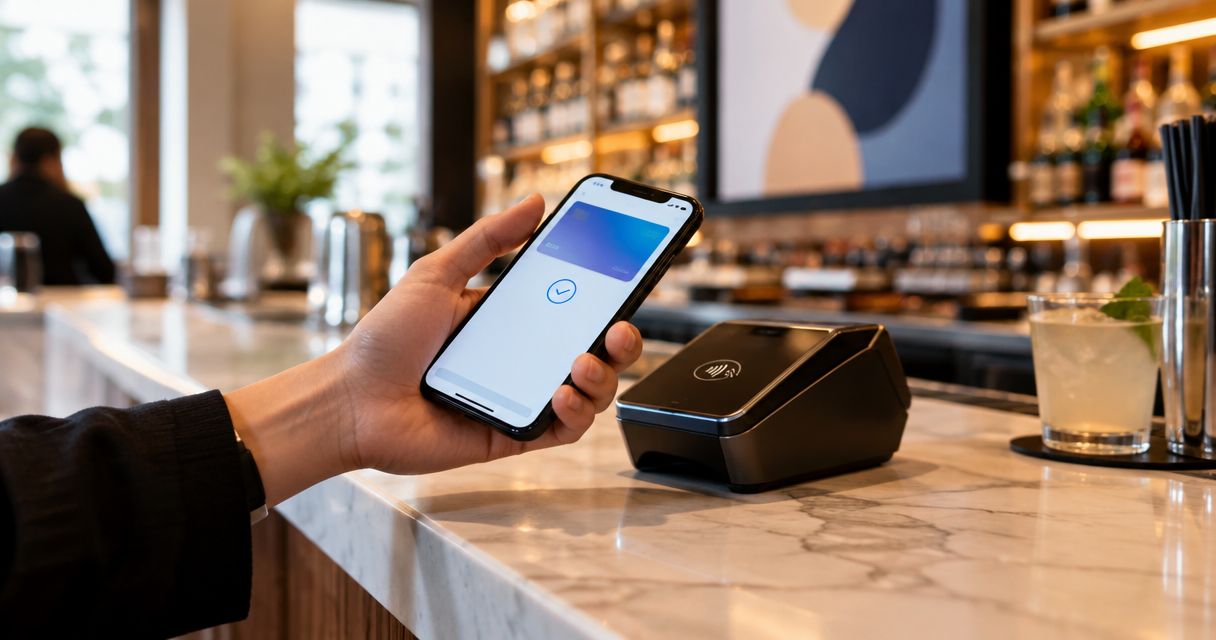
- Hold the top of your iPhone near the contactless reader. Keep it there until the phone shows Done and a checkmark, or until the reader gives further instructions.
- Wait for staff to confirm the transaction. Complete any remaining signature or receipt step that staff identifies.
- Ask whether your tab is fully closed. If you left a physical card to open it, retrieve that card before walking away.
- Keep the final receipt. Use it to check the settled transaction later rather than relying solely on a notification or an initial pending amount.
Expected result: Staff confirms payment and tab closure, you have your belongings, and you retain a record of the final check.
Make 2 checks before leaving: confirm that the tab is closed and confirm that you have any card you handed over. A successful phone interaction does not answer both questions.
Pay with Apple Watch instead of iPhone
Apple Watch provides an adjacent checkout workflow when the bar confirms Apple Pay acceptance. A payment card must be set up for Apple Pay on the watch itself; do not assume that adding it to your iPhone automatically completes the watch setup.
| Device | Best for | Advantage | Limitation |
|---|---|---|---|
| iPhone | People who want to review their Wallet cards on the phone | Lets you select a card on the phone before presenting it | Requires access to the phone and working authentication |
| Apple Watch | People who already use a configured watch for payments | Lets you present your wrist to the reader | Requires a payment card configured on the watch and an unlocked watch |
Neither device changes the bar's tab policy. Choose the device you have already prepared, rather than introducing a new setup during checkout.
- Double-click the Apple Watch side button. Your default payment card appears.
- Scroll to another card if needed. Confirm that the intended card is showing before you approach the reader.
- Hold the watch display near the contactless reader until you feel a gentle tap and hear a beep.
- Ask staff to confirm that the payment completed and the tab is closed. Keep the receipt just as you would after paying with your phone.
Expected result: The watch signals the contactless interaction, and staff separately confirms the completed checkout. This 2026 workflow still begins with the same acceptance question as the iPhone version.
Troubleshooting
Apple Wallet opens, but the reader does nothing
Opening Wallet is not enough: authenticate the selected card and hold the top of the iPhone near the reader's contactless area. Ask staff whether the terminal is ready for your transaction before trying again.
Remove distance and positioning as problems first. Do not repeatedly tap while staff is still entering the check.
Your card is declined
Ask staff whether the transaction was declined or whether the reader failed to detect the device. Those are different problems, and repeated attempts do not resolve a bank decline.
If the card is declined, use another accepted payment method and contact the card issuer about the original card. Avoid repeatedly authorizing the same check without knowing the status of the previous attempt.
The phone shows a checkmark, but the tab is still open
Ask staff to check the transaction status and the tab's remaining balance. The phone's display is not a substitute for confirming that the correct check was settled.
Do not authorize a second payment until staff checks the first attempt. Establish whether the first transaction completed before deciding what to do next.
The receipt's card digits do not match your physical card
Apple Pay presents a device-specific payment number, so different receipt digits do not automatically mean the wrong card was charged. Tell staff which device you used and keep the receipt.
For a later question, provide the transaction date, the receipt details, and the payment method. Never send your full card number or device passcode in a message.
Your bank shows a pending amount that differs from the receipt
A pending authorization is not the same as a settled charge. Keep the final receipt and check the transaction again after your bank marks it as completed.
If the completed charge differs from the receipt, contact the bar with the transaction details. Ask your issuer about any unresolved authorization rather than assuming that every pending entry is a separate completed payment.
Customize your workflow for a group
For a shared evening, separate paying the bar from settling up with friends. One person can handle the check, while the group handles reimbursement separately; that does not require the bar to divide the transaction among several devices.
Ask staff before requesting 2 separate payments on a shared check. Confirm which amount belongs to each payment and how gratuity will be handled, rather than having several people present phones at once.
For a 2026 group visit, agree on the arrangement before orders accumulate. Record the final total from the receipt, not an earlier estimate, and avoid sending reimbursement requests until the payer confirms the tab is closed.
The guide to splitting a bar tab with Venmo covers the related group-payment topic. Keep peer-to-peer reimbursement separate from the bar's own accepted payment methods.
FAQ
Does Mess Hall Harlem accept Apple Pay for a bar tab?
Confirm directly with Mess Hall Harlem before opening your tab. Ask specifically whether Apple Pay can close a running tab and whether a physical card is required to start it.
Can I open a bar tab with Apple Pay instead of a physical card?
Opening a tab depends on the bar's payment procedures, not just whether its reader supports contactless payments. Ask staff what they require before placing your first order.
How do I pay a bar check with Apple Pay on my iPhone?
Authenticate the intended card in Apple Wallet, then hold the top of your iPhone near the contactless reader when staff has prepared the transaction. Wait for confirmation and ask whether your tab is fully closed.
Can I tip when paying a bar tab with Apple Pay?
Ask staff how gratuity is handled for your transaction. Review the check for any existing gratuity or service charge before completing an additional tip prompt.
Can I use Apple Watch to pay my bar tab?
Use Apple Watch if the bar confirms Apple Pay acceptance and you have a payment card configured on the watch. Double-click the side button, select the card, and hold the watch display near the reader.
Why are the card digits on my Apple Pay receipt different?
Apple Pay uses a device-specific payment number rather than presenting your physical card number to the merchant. Different receipt digits alone do not establish that the wrong card was charged.
Do I need internet access to tap my iPhone at a bar?
Your iPhone does not need an active internet connection to make an in-store Apple Pay payment. You still need a configured supported card, device authentication, and a merchant terminal that can process the transaction.
One last thing
Retrieve the card you used to open the tab, even if you close it with your phone. Changing the payment device does not put a physical card back in your pocket.
Before leaving Mess Hall Harlem, pause for a final check: closed tab, receipt, phone, and any card you handed over. That is a better finish to a neighborhood night out than retracing your steps.